as

Settings
Sign out
Notifications
Alexa
Amazon Appstore
AWS
Documentation
Support
Contact Us
My Cases
Get Started
Design and Develop
Publish
Reference
Support

react-native-device-info

The react-native-device-info library allows developers access to device-specific information in React Native for Vega apps, especially TV apps. You can access information such as device name, app version, brightness, and more.

This article explains why you might use this library and how to use it.

Why use react-native-device-info?

Knowing more information about a device enables you to:

  • Fine-tune your app's functionality
  • Improve performance
  • Provide a better user experience

Troubleshooting and logging

Knowing the device model, OS version, and first install time can help you address platform-specific issues, crashes, or bugs when you're debugging and maintaining apps.

User personalization

Knowing about the first install time, app version, or other device-specific features can be used to personalize the user experience. For example, you can show a welcome message for first-time users or offer different content for specific TV models.

Installation

To use the package, add the JavaScript library dependency in your app's package.json file.

Copied to clipboard.

"dependencies": {
         ...
         "@amazon-devices/react-native-device-info": "~2.0.0"
    }

Examples

Copied to clipboard.

import DeviceInfo from '@amazon-devices/react-native-device-info';

// or ES6+ destructured imports

import { getBaseOs, getBaseOsSync } from '@amazon-devices/react-native-device-info';

const baseOsSync = getBaseOsSync();
const baseOs = await getBaseOs();

How to use react-native-device-info in Kepler

Now that you've imported the library, you can import methods from it. There are three types of methods available:

  • Synchronous
  • Asynchronous
  • Hooks

Synchronous

For debugging and logging, synchronous methods get information on model, base OS, device type, app name, and application for your project.

Examples

import React, {useState, useEffect} from 'react';
import DeviceInfo from '@amzn/react-native-device-info';
import { View, Text, StyleSheet, ScrollView } from 'react-native';

const ExampleApp = () => {
  const [deviceInfo, setDeviceInfo] = useState({
    model: '',
    deviceType: '',
    applicationName: '',
    deviceId: '',
    systemVersion: '',
    appVersion: ''
  });

  useEffect(() => {
    const fetchDeviceInfo = async () => {
      const model = await DeviceInfo.getModel();
      const deviceType = await DeviceInfo.getDeviceType();
      const applicationName = await DeviceInfo.getApplicationName();
      const deviceId = await DeviceInfo.getDeviceId();
      const systemVersion = await DeviceInfo.getSystemVersion();
      const appVersion = await DeviceInfo.getVersion();

      setDeviceInfo({
        model,
        deviceType,
        applicationName,
        deviceId,
        systemVersion,
        appVersion
      });
    };

    fetchDeviceInfo();
  }, []);

  return (
    <ScrollView contentContainerStyle={styles.container}>
      <Text style={styles.header}>Device Information</Text>
      <View style={styles.infoBox}>
        <Text style={styles.label}>Model:</Text>
        <Text style={styles.value}>{deviceInfo.model}</Text>
      </View>
      <View style={styles.infoBox}>
        <Text style={styles.label}>Device Type:</Text>
        <Text style={styles.value}>{deviceInfo.deviceType}</Text>
      </View>
      <View style={styles.infoBox}>
        <Text style={styles.label}>Application Name:</Text>
        <Text style={styles.value}>{deviceInfo.applicationName}</Text>
      </View>
      <View style={styles.infoBox}>
        <Text style={styles.label}>Device ID:</Text>
        <Text style={styles.value}>{deviceInfo.deviceId}</Text>
      </View>
      <View style={styles.infoBox}>
        <Text style={styles.label}>System Version:</Text>
        <Text style={styles.value}>{deviceInfo.systemVersion}</Text>
      </View>
      <View style={styles.infoBox}>
        <Text style={styles.label}>App Version:</Text>
        <Text style={styles.value}>{deviceInfo.appVersion}</Text>
      </View>
    </ScrollView>
  );
};

export default ExampleApp;

The following methods can be used without async/await:

import React, {useState, useEffect} from 'react';
import DeviceInfo from '@amzn/react-native-device-info';
import { View, Text, StyleSheet, ScrollView } from 'react-native';

const ExampleApp = () => {
  const MODEL = DeviceInfo.getModel();
  const DEVICE_TYPE = DeviceInfo.getDeviceType();
  const APPLICATION_NAME = DeviceInfo.getApplicationName();
  const DEVICE_ID = DeviceInfo.getDeviceId();
  const SYSTEM_VERSION = DeviceInfo.getSystemVersion();
  const APP_VERSION = DeviceInfo.getVersion();

  return (
    <ScrollView contentContainerStyle={styles.container}>
      <Text style={styles.header}>Device Information</Text>
      <View style={styles.infoBox}>
        <Text style={styles.label}>Model:</Text>
        <Text style={styles.value}>{MODEL}</Text>
      </View>
      <View style={styles.infoBox}>
        <Text style={styles.label}>Device Type:</Text>
        <Text style={styles.value}>{DEVICE_TYPE}</Text>
      </View>
      <View style={styles.infoBox}>
        <Text style={styles.label}>Application Name:</Text>
        <Text style={styles.value}>{APPLICATION_NAME}</Text>
      </View>
      <View style={styles.infoBox}>
        <Text style={styles.label}>Device ID:</Text>
        <Text style={styles.value}>{DEVICE_ID}</Text>
      </View>
      <View style={styles.infoBox}>
        <Text style={styles.label}>System Version:</Text>
        <Text style={styles.value}>{SYSTEM_VERSION}</Text>
      </View>
      <View style={styles.infoBox}>
        <Text style={styles.label}>App Version:</Text>
        <Text style={styles.value}>{APP_VERSION}</Text>
      </View>
    </ScrollView>
  );
};

export default ExampleApp;

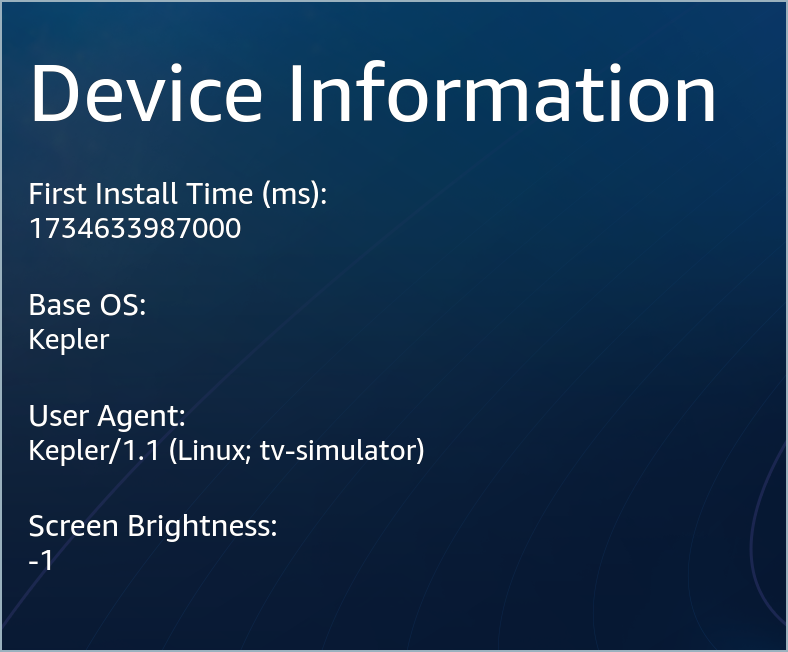
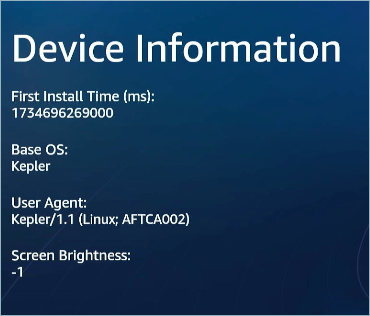
Output:

Notice the output on a simulator and a device show that Model has a different value: tv-simulator and AFTCA002, respectively.

Asynchronous

Here's an example of a configured user personalization.

import React, { useEffect, useState } from 'react';
import { View, Text, StyleSheet, ScrollView } from 'react-native';
import DeviceInfo from 'react-native-device-info';

const DeviceDetailsApp = () => {
  const [installTime, setInstallTime] = useState(null);
  const [os, setOs] = useState('');
  const [userAgent, setUa] = useState('');
  const [brightness, setBrightness] = useState(null);

  useEffect(() => {
    DeviceInfo.getFirstInstallTime()
      .then((firstInstallTime) => {
        setInstallTime(firstInstallTime);
      })
      .catch((error) => {
        console.error('Error fetching first install time:', error);
      });

    // Fetch base operating system
    DeviceInfo.getBaseOs()
      .then((baseOs) => {
        setOs(baseOs);
      });

    // Fetch user agent
    DeviceInfo.getUserAgent()
      .then((userAgent) => {
        setUa(userAgent);
      });

    // Fetch screen brightness level
    DeviceInfo.getBrightness()
      .then((brightness) => {
        setBrightness(brightness);
      });
  }, []);

  return (
    <ScrollView contentContainerStyle={styles.container}>
      <Text style={styles.header}>Device Information</Text>

      <View style={styles.infoBox}>
        <Text style={styles.label}>First Install Time (ms):</Text>
        <Text style={styles.value}>{installTime !== null ? installTime : 'Loading...'}</Text>
      </View>

      <View style={styles.infoBox}>
        <Text style={styles.label}>Base OS:</Text>
        <Text style={styles.value}>{os || 'Loading...'}</Text>
      </View>

      <View style={styles.infoBox}>
        <Text style={styles.label}>User Agent:</Text>
        <Text style={styles.value}>{userAgent || 'Loading...'}</Text>
      </View>

      <View style={styles.infoBox}>
        <Text style={styles.label}>Screen Brightness:</Text>
        <Text style={styles.value}>{brightness !== null ? brightness : 'Loading...'}</Text>
      </View>
    </ScrollView>
  );
};
export default DeviceDetailsApp;

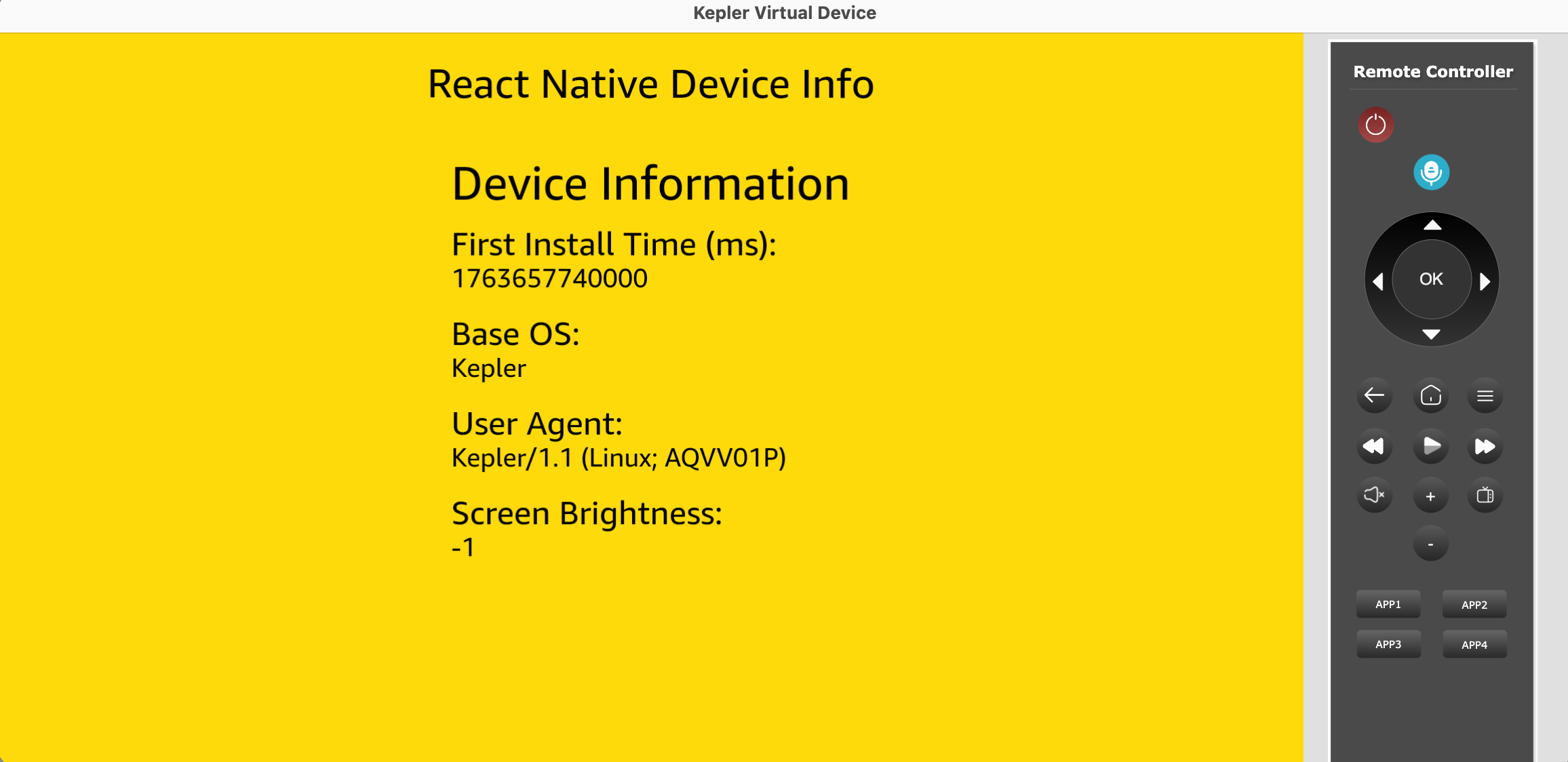
Output:

You can see the First Install Time, Base OS, User Agent, and Screen Brightness results from the user personalization. The results for a simulator and device are similar, only differentiating the User Agent result.

Hooks

  1. useBrightness()
  2. useManufacturer()
  3. useDeviceName()
  4. useFirstInstallTime()

Example

import { useDeviceName } from '@amzn/react-native-device-info';

const { loading, result } = useDeviceName();

<Text>{loading ? 'loading...' : result}</Text>;

Important: The following properties are not currently supported and return a blank response if used:

  • Location
  • Memory

API reference

Vega only supports the APIs mentioned in this document. Many APIs from react-native-device-info APIs are platform-specific. If there is no implementation for a platform, then the "default" return values you will receive are unknown for string, -1 for number, and false for boolean. Arrays and Objects will be empty ([] and {} respectively).

Most of the APIs return a Promise but also have a corresponding API with Sync on the end that operates synchronously. For example, you may prefer to call getBaseOsSync() during your app bootstrap to avoid async calls during the first parts of app startup.

Note: The values shown in the examples are for informational purposes only and don't represent the actual output.

getBaseOs()

The base OS build the product is based on.

Examples

Copied to clipboard.

DeviceInfo.getBaseOs().then((baseOs) => {
  // "Kepler"
});

getFirstInstallTime()

Gets the time at which the app was first installed, in milliseconds.

Examples

Copied to clipboard.

DeviceInfo.getFirstInstallTime().then((firstInstallTime) => {
  // 1517681764528
});

getInstallerPackageName()

The internal value used by the underlying source control to represent this build.

Examples

Copied to clipboard.

DeviceInfo.getInstallerPackageName().then((installerPackageName) => {
  // "com.amazon.venezia"
});

getManufacturer()

Gets the device manufacturer.

Examples

Copied to clipboard.

DeviceInfo.getManufacturer().then((manufacturer) => {
   // "Amazon"
});

getLastUpdateTime()

Gets the time at which the app was last updated, in milliseconds.

Examples

Copied to clipboard.

DeviceInfo.getLastUpdateTime().then((lastUpdateTime) => {
  //  1517681764992
});

getUserAgent()

Gets the device User Agent.

Examples

Copied to clipboard.

DeviceInfo.getUserAgent().then((userAgent) => {
  // "Kepler/1.1 (Linux; AFTCA002)"
});

Known issue

getuserAgent may not return a value in the Vega Virtual Device, but returns a value on the Fire TV Stick.


getApplicationName()

Gets the application name.

Examples

Copied to clipboard.

let appName = DeviceInfo.getApplicationName();
// "AwesomeApp"

getVersion()

Gets the application version.

Examples

Copied to clipboard.

let version = DeviceInfo.getVersion();
//  "1.0.0"

getModel()

Gets the device model.

Examples

Copied to clipboard.

let model = DeviceInfo.getModel();
// AFTCA001

getSystemName()

Gets the device OS name.

Examples

Copied to clipboard.

let systemName = DeviceInfo.getSystemName();
// "Kepler"

getSystemVersion()

Gets the device OS version.

Examples

Copied to clipboard.

let systemVersion = DeviceInfo.getSystemVersion();
// "1.1"

getBundleId()

Gets the application bundle identifier.

Examples

Copied to clipboard.

let bundleId = DeviceInfo.getBundleId();
// "com.example.awesomeApp"

getDeviceType()

Returns the device's type as a string

Examples

Copied to clipboard.

let type = DeviceInfo.getDeviceType();
// 'TV'
// unknown

getDeviceId()

Gets the device ID.

Examples

Copied to clipboard.

let deviceId = DeviceInfo.getDeviceId();
// AFTCA001

Supported versions

Package name Amazon NPM library version Vega OS build number Vega SDK version Release notes
@amazon-devices/react-native-device-info 2.1.0+10.11.0 OS 1.1 (201010438050) 0.20  

Last updated: Nov 17, 2025